Every trade clears at the external oracle mid price. Order size does not move price; there is no AMM slippage.
How to Trade on Twilight
Twilight is a privacy-preserving inverse perpetual protocol that allows users to trade BTC with leverage while keeping their positions confidential. All trades are executed through encrypted subaccounts, ensuring private settlement and execution.
Prerequisites
Before trading on the DEX, ensure you have:
- NYKS Tokens: Required for transaction fees on the Twilight Testnet
- BTC Balance: Available in your Trading Account (Subaccount) for trading.
- Subaccount: A dedicated Trading Account for trading operations
💡 New users can:
- Claim your testnet tokens from the Faucet:
NYKSfor gas fees andSATSto represent your BTC balance.- Set up Trading Accounts using the Wallet Guide
⚠️ Testnet Notice: You are currently on the Twilight Testnet. All operations use test tokens, which have no real-world value.
Subaccount Management
⚠️ Important: Each Subaccount becomes locked when a position is open.
To maintain flexibility and trade efficiently, create a separate Subaccount for each position.
Connect Your Wallet
Before initiating any trading activity, ensure that your Keplr wallet is connected to the Twilight frontend.
Click on the Connect Wallet in the top-right corner of the interface and approve the connection request.
You must be connected for Subaccounts, balances, and trading actions to function correctly.
Opening a Market Order
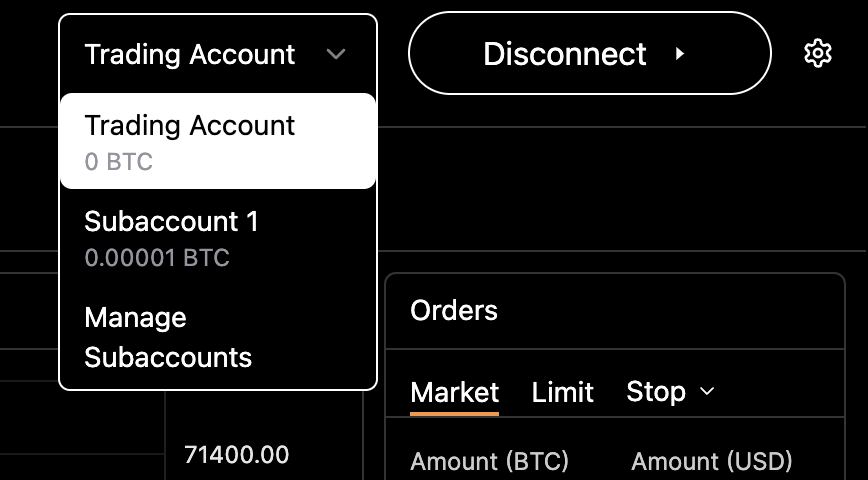
Step 1: Access the Trading Interface
- Navigate to the Trade tab in the top navigation bar
- Select your Trading Account from the dropdown menu in the top-right corner
Step 2: Configure Your Order
See Funding & Liquidation Risk before you execute.
-
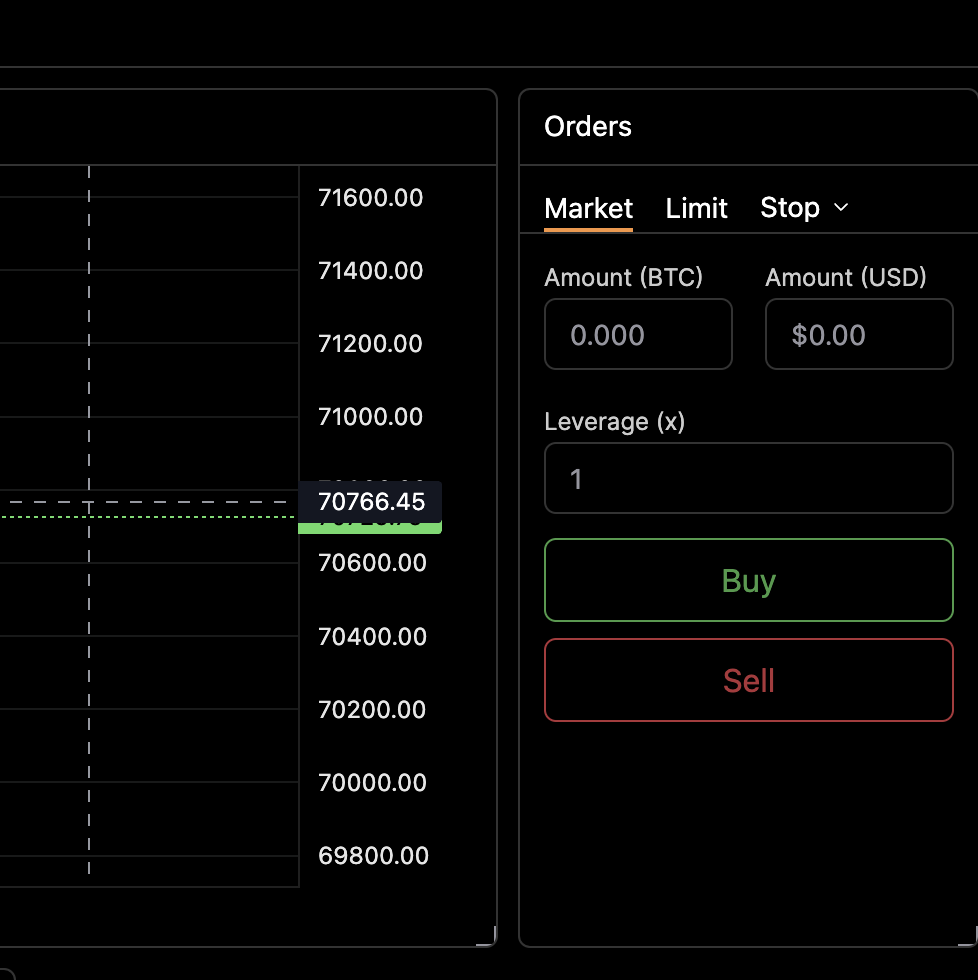
Locate the Orders panel on the right side of the interface
-
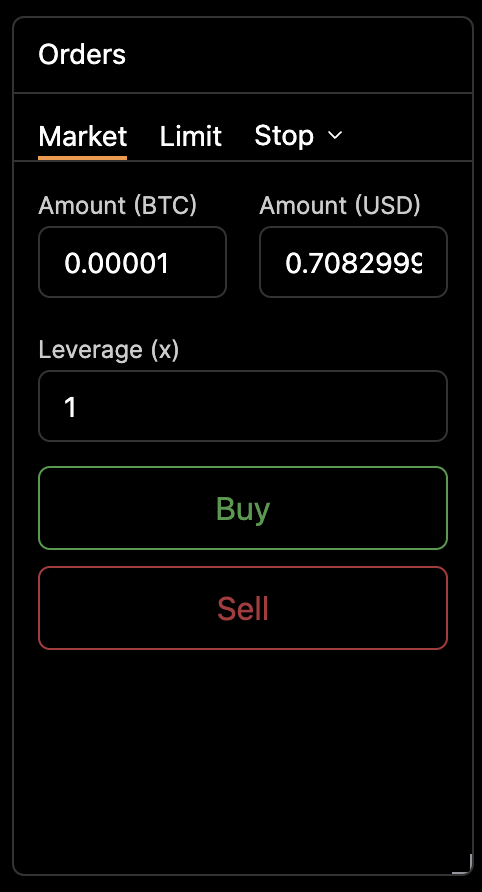
Set your trading parameters:
- Amount: The full balance of your selected account will be used
- Leverage: Choose your desired leverage multiplier
⚠️ Important:
- Only full account balance orders are supported
- For trading with different amounts, create a new Trading Account in the Wallet section
Step 3: Execute the Trade
- Click either Buy or Sell to create your order
- A notification will appear to confirm your order. The on-chain transaction can be viewed using Explorer Link

Step 4: Monitor Your Position
- Track your open positions in the Details panel under My Trades
- View order status, uPnL, and other informations about open positions

Closing a Market Order
Step 1: Access Your Positions
- Navigate to the My Trades tab on the trading interface
Step 2: Close the Position
- Locate the position you want to close
- Click the Close button next to the corresponding position
- A notification will appear to confirm that your position has been closed

Step 3: Settlement
- Any profit or loss (PnL) will be settled back to your same Trading Account
- You can verify the updated balance in your Trading Account
💡 Note: The settlement occurs automatically to the same Trading Account that was used to open the position
Placing a Limit Order
Limit orders allow you to specify the price at which you want to buy or sell BTC on the Twilight exchange. The order will remain open until it is either filled at your target price or cancelled.
Step 1: Access the Trading Interface
- Navigate to the Trade tab in the top navigation bar
- Select your Trading Account from the dropdown menu in the top-right corner
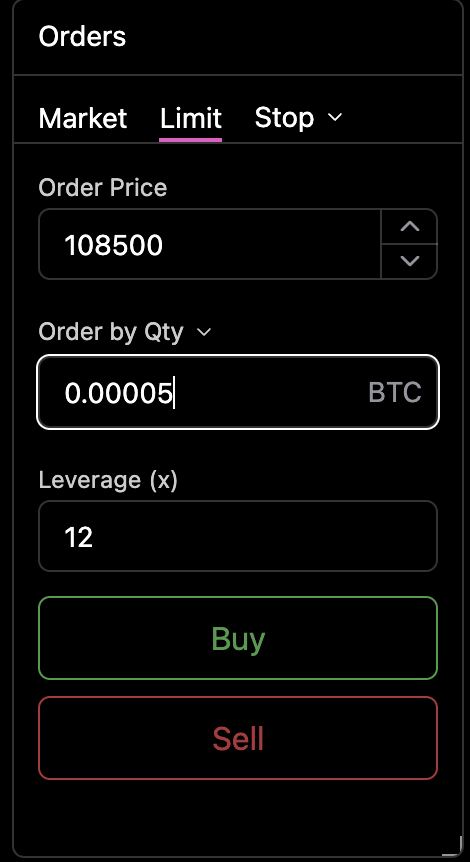
Step 2: Configure the Limit Order
-
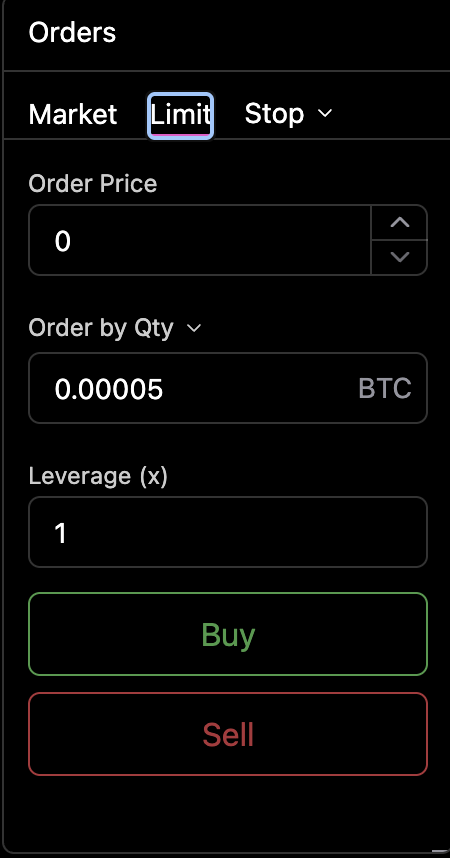
Locate the Orders panel on the right side
-
Switch from Market to Limit on the panel
-
Set your trading parameters:
- Amount: The full balance of your selected account will be used
- Limit Price: Your desired execution price
- Leverage: Choose your desired leverage multiplier
Step 3: Place the Order
See Funding & Liquidation Risk before you execute.
- Click either Buy or Sell to create your limit order
- If the limit price meets the mark price condition, the order will be immediately filled as a market order.
Step 4: Monitor Your Order
- Track your pending orders in the Details → My Trades section
- The order will remain active until either:
- It is matched at your specified price
- You manually cancel it

📌 You can cancel an open limit order at any time by clicking the Cancel button in the My Trades panel.
⚠️ Important:
- Only full account balance orders are supported
- Ensure sufficient collateral is available in your Trading Account
- For trading with different amounts, create a new Trading Account via the Wallet section
For wallet-related operations such as account creation and transfers, please refer to the Wallet Guide.
Trading Fees
Twilight applies a small fee to each trade executed on the Twilight :
- Maker Fee: 0.02 % — applied when a limit instruction does not cross on entry and later triggers.
- Taker Fee: 0.04 % — applied to market orders or limits that cross immediately.
Fees are deducted automatically from the Trading Account at the time of order execution.
Funding & Liquidation Risk
Twilight applies funding payments to help balance directional skew between long and short positions:
| Mechanism | When Applied | Effect on You |
|---|---|---|
| Hourly Funding | Top of every hour | Margin is debited or credited based on long/short imbalance. |
| Liquidation | When margin ratio ≤ maintenance threshold | Position is closed at the oracle mark. 100 % of posted margin is forfeited. |
Manage risk by:
- Choosing conservative leverage.
Related: The Twilight Liquidity Pool
All trades on the Twilight protocol, settle against a liquidity pool on the Twilight Testnet.
This pool is funded by users who lend their BTC to earn yield from liquidation, trading fees, and funding fees.
If you're interested in becoming a liquidity provider, see the Provide Liquidity to Twilight Pool guide for details.